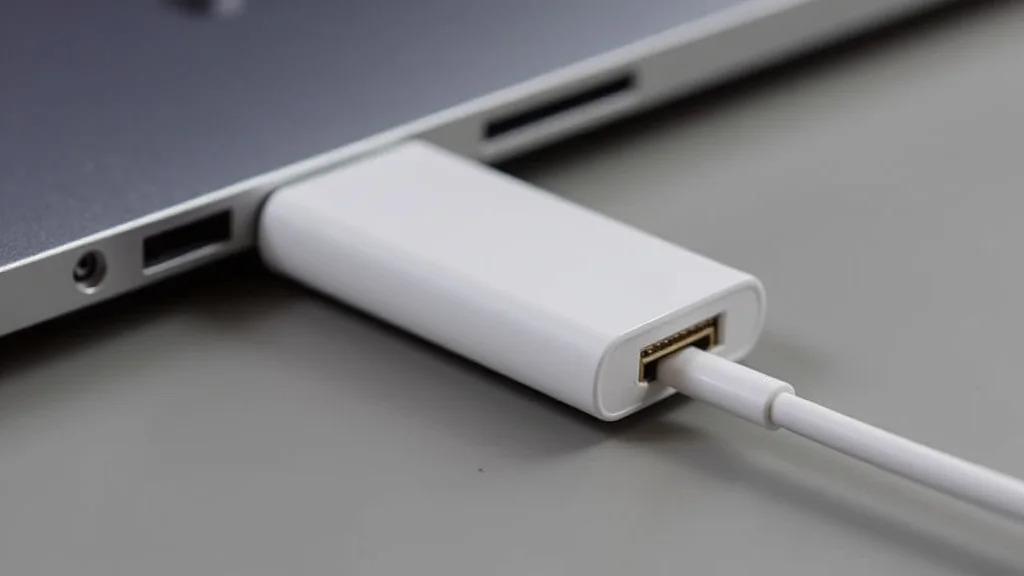
Picture this: you’re ready to give an amazing presentation, but your laptop won’t connect to the projector. The culprit? The dreaded adapter! Many Apple laptops, especially those with USB-C ports, require a special apple laptop adapter HDMI to connect to a standard display. This can be frustrating if you’re not prepared. In this guide, we’ll explore everything you need to know about these adapters, ensuring a smooth connection every time. You’ll learn how they function, what options are available, and how to choose the right one for your needs, boosting your knowledge and confidence for a great experience.
What is an Apple Laptop Adapter HDMI and Why Do You Need It?
An apple laptop adapter HDMI is a small device that bridges the gap between your Apple laptop’s display output and the HDMI port on a monitor, TV, or projector. Modern Apple laptops often use USB-C or Thunderbolt ports, which, while versatile, aren’t directly compatible with the HDMI ports found on most external displays. This adapter essentially converts the digital signal from your laptop into a format that the external display can recognize. Without it, you’ll be staring at a blank screen during your important meetings or unable to enjoy movies on a bigger display.
The Role of USB-C and Thunderbolt Ports
USB-C and Thunderbolt ports have become increasingly common on Apple laptops because they offer many advantages over older port types. They are smaller, more versatile, and can handle a variety of functions, including charging, data transfer, and video output. USB-C ports can deliver power and transfer data simultaneously, while Thunderbolt adds even faster data transfer speeds and the ability to connect multiple displays at once. These ports utilize DisplayPort Alternate Mode (DP Alt Mode) to transmit video signals, making them perfect for HDMI connections with the right adapter.
- Versatile Functionality: USB-C and Thunderbolt ports are designed to do many things. This contrasts with older ports like USB-A or the now-retired MagSafe which have far more limited functions.
- Faster Data Transfer: Thunderbolt, in particular, offers extremely rapid data transfer speeds, vital for tasks like video editing or transferring large files to external drives. This speed enhancement means quicker workflows and less waiting.
- Power Delivery: USB-C ports support power delivery, so you can charge your laptop through the same port you use for data or video output. This decreases the number of wires you need.
- Slim Design: USB-C and Thunderbolt ports contribute to the sleek and slim design of current Apple laptops, providing a clean appearance and ease of portability.
- Future-Proofing: The wide adoption of USB-C across many devices means that your Apple laptop adapter HDMI will remain relevant for quite some time, as USB-C is rapidly becoming the standard.
HDMI Basics: The Standard Connection
HDMI (High-Definition Multimedia Interface) is the standard connection for transmitting high-definition video and audio signals between devices. It is very common on TVs, monitors, projectors, and other display devices. It carries both audio and video signals through a single cable, reducing cable clutter and simplifying the connection process. It supports various video resolutions, including 1080p, 4K, and beyond, providing a high-quality visual experience. Understanding HDMI will help you properly use your apple laptop adapter HDMI.
- High-Quality Audio and Video: HDMI supports high-definition video resolutions and delivers audio quality, meaning that what you see on the display will be sharp, and the sound will be clear.
- Single Cable Convenience: Only one HDMI cable is needed to transmit both video and audio signals.
- Wide Compatibility: HDMI is found on almost all modern displays, making your laptop easy to connect to various screens.
- Backward Compatibility: Newer HDMI versions are mostly backward compatible, meaning they work well with older devices.
- Protected Content: HDMI supports technologies like HDCP (High-bandwidth Digital Content Protection) to prevent content piracy, which is useful for streaming content.
Choosing the Right Apple Laptop Adapter HDMI
Several factors can affect the apple laptop adapter HDMI you choose. Picking the correct adapter ensures a trouble-free experience when connecting your Apple laptop to external displays. It also ensures you use all the advanced features of your display. Consider these details when making your purchase, and it’ll improve compatibility and performance. This helps avoid signal issues and ensures you get the features you expect.
Types of Adapters: USB-C to HDMI
The most common type of adapter is the USB-C to HDMI adapter. This adapter plugs into the USB-C or Thunderbolt port on your Apple laptop and provides an HDMI port for connecting to your display. These adapters are available in various styles, including simple dongles and more elaborate hubs. Some have multiple ports for added functionality. The style of adapter can also have a strong impact on its long-term use and storage.
- Simple Dongles: These are compact, single-purpose adapters that focus solely on the HDMI connection. These are generally the most affordable and easy to carry around.
- Multiport Adapters: These adapters have multiple ports, including HDMI, USB-A, USB-C, and sometimes even Ethernet and SD card readers. They offer increased functionality, but can be more expensive.
- Built-in Cable vs. Port: Some adapters have a built-in HDMI cable, while others have an HDMI port. Built-in cables are more convenient for portable use.
- Brand Reputation: Consider the brand’s reputation for quality and reliability. Some brands make higher-quality adapters.
- Cost: Consider the cost of the adapter as it varies based on features. You may need to invest more if you desire more features, but it may also be worth it to pay a little more.
Key Features to Consider
When selecting your adapter, keep certain features in mind to ensure the best possible experience. These elements can significantly impact usability. They can prevent issues like poor image quality and incompatibility. Checking the adapter’s specifications can save time and frustration later on. These features are very important for the final quality and ease of use.
- Resolution Support: Ensure the adapter supports the resolution of your external display. Most adapters support 4K resolution, which is standard on many modern TVs and monitors.
- Refresh Rate: Check the refresh rate support. If you are a gamer or need a smooth display, higher refresh rates are important.
- HDCP Compliance: Make sure the adapter supports HDCP. This is important for streaming content from services like Netflix or Hulu.
- Build Quality: Choose an adapter with a sturdy build, as you’ll be plugging and unplugging it frequently.
- Port Compatibility: Make sure the adapter’s USB-C connector fits snugly into your Apple laptop’s port. Consider the length of the adapter if it’s a dongle, so it doesn’t get in the way.
Troubleshooting Common HDMI Connection Problems
Even with the correct apple laptop adapter HDMI, problems can occur. From time to time, you might have to check a few things before getting everything working as expected. Many common connection issues are easily resolved with basic troubleshooting. By knowing how to address these situations, you can prevent frustrating downtime. This will also boost your technical knowledge.
No Signal Detected
If you see a “No Signal Detected” message on your external display, it’s often a simple fix. Ensure all connections are secure, including the HDMI cable and the adapter. Check that the display is turned on and set to the correct input source. Sometimes, restarting your laptop or display can solve the problem. Checking the input sources on your display should be your first action.
- Check the HDMI Cable: Make sure the HDMI cable is securely connected to both the adapter and the display. Try using a different HDMI cable to rule out a faulty cable.
- Display Input Source: Verify that the display is set to the correct input source, usually HDMI 1, HDMI 2, or HDMI 3. Use the display’s remote control or buttons to switch to the correct input.
- Adapter Compatibility: Double-check that your adapter is compatible with your Apple laptop. Verify that it is working with another device or display.
- Restart Devices: Try restarting both your laptop and the display. Sometimes a simple restart can resolve connection issues.
- Software Issues: Check if your laptop’s display drivers are up-to-date. Visit Apple’s website to update drivers.
Video or Audio Issues
If you get a video display, but it’s blurry or has the wrong resolution, or if there’s no sound, several steps may help. Adjusting the display settings on your Apple laptop and external display can often fix these problems. For sound, make sure your laptop is sending audio through the HDMI output, and that your display’s sound settings are configured correctly. These troubleshooting steps can improve your video and audio quality.
- Resolution Settings: Check your laptop’s display settings to ensure the correct resolution is selected. Go to System Preferences > Displays and choose the best resolution for your external display.
- Refresh Rate: Ensure the refresh rate is set correctly. A refresh rate that’s too high or too low can cause display issues. You can typically change this in the display settings.
- Audio Output: Check the audio output settings. In System Preferences > Sound, make sure the external display is selected as the output device. Adjust the volume as needed.
- Cable Quality: The quality of your HDMI cable can impact both video and audio quality. Consider using a high-quality HDMI cable.
- Driver Updates: Ensure your graphics drivers are up to date. Driver updates may resolve audio and video problems. Visit Apple’s website or use the Software Update feature.
Using Your Apple Laptop Adapter HDMI in Practical Scenarios
Understanding how to use your apple laptop adapter HDMI in everyday situations is helpful. From business presentations to entertainment at home, your adapter makes various uses straightforward. Consider these examples of how an adapter can enhance your workflow.
Presentations and Meetings
In business settings, the ability to connect to projectors and displays is important. The adapter lets you present easily and effectively. Make sure your adapter is ready before the meeting. You can easily connect to a projector with a quick setup.
- Before the Meeting: Test your setup. Connect your laptop to the projector or display to confirm everything works smoothly. This ensures you’re prepared.
- During the Presentation: Select the correct display mode, either mirroring your display or extending it. This enables you to manage your presentation.
- Troubleshooting: Have a spare adapter with you. Having a backup allows you to continue the presentation if one adapter fails.
Home Entertainment
Transforming your living room into a home theater is easy with an adapter. You can enjoy movies and videos on a bigger screen, improving your entertainment experience. Your Apple laptop acts as a media hub, offering access to various content.
- Connecting to the TV: Plug the adapter into your laptop and connect the HDMI cable to your TV. Select the HDMI input source on your TV to view the laptop screen.
- Setting the Resolution: Ensure that your display resolution is set to the TV’s optimal settings. This guarantees a good picture.
- Enjoying Content: Stream movies, TV shows, and videos from your laptop to your TV. Enjoy a better viewing experience by using your larger TV screen.
Frequently Asked Questions
Question: Does my Apple laptop come with an HDMI adapter?
Answer: No, Apple laptops typically do not include an HDMI adapter in the box. You must purchase one separately if you need to connect your laptop to an HDMI display.
Question: Will any USB-C to HDMI adapter work with my Apple laptop?
Answer: Most USB-C to HDMI adapters will work with Apple laptops, but it’s always better to ensure that the adapter is specifically designed to support the DisplayPort Alternate Mode (DP Alt Mode) for video output.
Question: What is the best resolution I can get with an Apple laptop adapter HDMI?
Answer: Most modern adapters support up to 4K resolution at 60Hz. Ensure your adapter and display both support this resolution for the best visual experience.
Question: Do I need to install any drivers to use an HDMI adapter?
Answer: Usually, no. Apple laptops are designed to automatically recognize and use the adapter without additional driver installations. However, make sure your operating system is up-to-date.
Question: Can I use an HDMI adapter to connect multiple displays to my Apple laptop?
Answer: Yes, you can. You may need a multiport adapter that includes multiple HDMI ports or a Thunderbolt dock that supports multiple external displays.
Final Thoughts
Having the correct apple laptop adapter HDMI can significantly improve your experience with Apple laptops. Choosing the right adapter depends on your specific needs, focusing on factors like resolution, additional features, and build quality. Remember to consider USB-C and Thunderbolt ports, which make connecting to external displays easy. Taking the time to select the appropriate adapter can avoid problems like connection issues and poor visual and sound quality. This guide has offered essential tips for choosing and using adapters. Go out and confidently present your work, watch your favorite shows, or simply enjoy a bigger screen. With the right adapter, your Apple laptop will connect easily to your external displays, offering you flexibility, convenience, and superior image quality.